Docs
Two doors to the same object. Put a button on the apply you already have, or send a link to people who already applied. Setup is a few minutes and there is nothing to fill in by hand.
On this page
Which door do I need?
One question decides it: can you paste a line of HTML onto the page that holds your apply form?
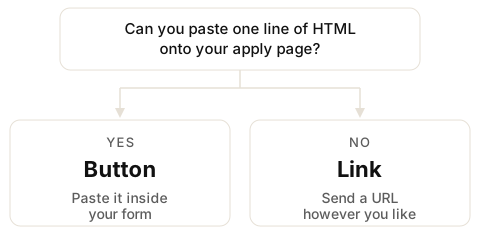
- Yes — use the button. The pill sits next to the fields they are already filling in. They never leave the page and they never type an email for us.
- No — use the link. Your form is hosted somewhere you cannot edit, so you send a URL instead. They record on our page and tell us the email they used on the apply.
You do not have to choose once and for all. Every button you create comes with a link to the same object, so you can paste one and send the other.
Create your button or link
Start here whichever door you want. This is the only step that happens in our dashboard, and it makes both the button and the link at the same time.
- Sign in. Go to Sign in and enter your work email. We mail you a link that signs you in. There is no password to pick or remember.
- Open New button / link and fill in the form. Only Name and Prompt are required — the rest have sensible defaults and you can change all of it later.
- Press Create. We build the button snippet and the link together, then take you to your list.
- Press Copy Button or Copy link next to the one you just made.
There is no key to fetch and nothing to paste into a settings screen. The snippet you copy already has your key inside it — that is the whole point of copying it rather than typing it.
What the fields mean
- Name — the role, in your words. Only you and the candidate see it.
- Prompt — the one thing you want them to answer, like “Why you?”. It shows above the camera while they record, so they are never staring at a blank screen.
- Max length — how long they may record. Default 27 seconds. You can go up to three minutes, but short answers get watched and long ones do not.
- Stop accepting at — optional. After this moment the door is closed.
- Mode — video or voice. Voice is the same flow with the camera off.
- Required or optional — whether a candidate has to say hi before they can get through your form.
- Form origin — the address of the page you will paste the button on. See below; this one catches people out.
- Webhook URL — optional, and for developers. Leave it empty and everything still arrives in your inbox.
Form origin
This is the single field that quietly breaks a button, so it is worth thirty seconds. It is an allowlist: we only let the button run on the address you name here. If someone copies your snippet onto their own site, it does nothing.
Enter the scheme and domain only of the page with the form on it —
https://jobs.example.com. Not the full path, no trailing slash.
- Get it from your browser's address bar on the apply page, and drop everything after the domain.
-
www.example.comandexample.comare two different origins. Use the one people actually land on. - A staging site is a different origin too. Test there and you need that address on the list as well.
Leave it blank and the button is not locked to anywhere. Fill it in wrong and the pill will sit there refusing to open the camera, with nothing on the page to tell the candidate why — which is why it is the first thing to check in If something is not working.
Set up the button
Three steps, and the middle one is where all the mistakes happen.
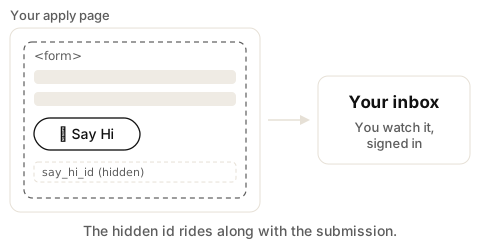
- Copy Button from your list. What lands on your clipboard is one line, with your key already in it.
-
Paste it inside your form, between
<form>and</form>, where you want the pill to appear. Inside matters: that is how the hidden field travels with the submission. - Check the page is https and the Form origin matches it. Then load the page. A 👋 Say Hi pill is there.
This is the shape of what you paste. You do not fill anything in — Copy Button does it for you.
<script src="https://cdn.sayhiapply.com/apply.js"></script><button data-say-hi="YOUR_KEY"></button>The CDN URL in the snippet is the contract. iOS Safari is supported. We host the Button. You paste it.
The button never asks for email. Their form already has who. On Send we write a hidden
say_hi_id into the form, so it arrives with the application exactly
like any other answer.
Set up the link
No code at all. Use this when the form is hosted somewhere you cannot paste a script.
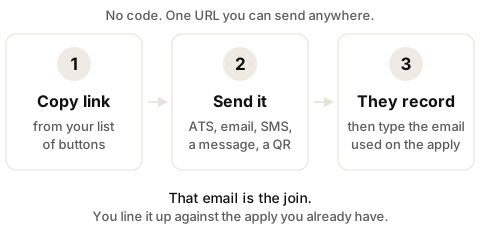
- Copy link from your list.
- Send it however you already reach people: your ATS, email, SMS, a message, or printed as a QR code.
- They record, then type the email they used on the apply, then Send. That email is the join.
Sending the link out of your own system, one candidate at a time? Add your own id to the end
of it — ?aid=YOUR_APPLICATION_ID — and it comes back with the hi, so
you do not match on the email at all. See
Join it to your system.
Greenhouse, Lever, Workable, Ashby, Typeform, Tally, Jotform, and Google Forms host the form for you. You cannot drop the button inside those. Send the link, or put Say Hi on a page you own next to them.
We do not push into Lever, Greenhouse, or any ATS. You line the hi up against the apply you already have. We email the candidate the id only — a receipt, not the tape, not an account, not marketing.
Make the match exact
Ask for the code on your form and you never have to line an address up by eye. Add one
short-answer question next to the link, labelled something like “Paste your Say Hi code”.
After Send we show them that code and email it to them, so they can paste it there and then or
come back to it later. It is the same id you see in your inbox and on
the webhook — never a video, never a file.
Optional, and it does not replace the email. The apply email is still required before Send, so a candidate who ignores the question still reaches you. The code just saves you the matching, and beats the email whenever both arrive.
We do not ship a QR. You paste the link into whatever you already print.
What the candidate sees
Introduce yourself
Default: the pill says 👋 Say Hi. All black type, no blue. The same on your form and on the link. Try the one above — it is a demo and nothing leaves your device.
Beside it: Introduce yourself. Default helper. Not inside the pill. Your prompt replaces it. Do not show both.
They tap it, allow the camera, and record on the spot with your prompt in front of them. They can watch it back and try again as many times as they like. Nothing reaches you until they press Send.
Live on device means the camera or mic on that phone. No file picker. No YouTube attach. They record there — so what you get is that person, then.
The Button branding
We host the control. You paste one line. The Button appears. You don't get a grey recorder you brand yourself. That is the product.
Two pictures. Never both. When the Button label is Say Hi, the 👋 Say Hi mark is the Button
itself. We do not also put the mark under it. When you set a button label on create, or
data-verb on the snippet, your words are on the pill and 👋 Say Hi
renders under the pill. On the recorder sheet, the mark is under every screen. Text only. Quiet.
There is no hide flag. There is no remove-branding SKU. Hide the mark and the camera refuses to open. The session dies. The Button is not Upload video — it opens a live camera.
What you get back
When they finish: a video or a voice note. When they recorded. Where they were. On a link: the email they used on the apply. Inbox, or a webhook you add later.
You watch it signed in, in your inbox. Nobody else can — not by guessing the id, not from the receipt code the candidate holds.
Requirements
Four things have to be true before a candidate can say hi. Three are about your page.
-
The page must be https. Browsers refuse the camera and mic on
http://. Our script is already https; the page you paste it on has to be too. -
The button must sit inside the
<form>on the button door. Outside it, the hiddensay_hi_idis not part of the submission and the hi arrives with nothing to join it to. - The Form origin must match the page. Scheme and domain, exactly. See Form origin.
- The candidate needs a working camera and mic, and has to allow them. Location is optional and they can say no to it.
If the page is not https, or the device has no camera, they can say hi on another phone. The button shows that link. After they send, they copy a code (not a video) and paste it back into the form. Only you watch it, in inbox, when you are signed in.
If something is not working
No pill on the page
The script did not load or did not run. Check the snippet is really on the page you are
looking at, and that you pasted the whole line — both the
<script> and the <button>. Some
page builders strip script tags out of a rich-text block; paste it into an embed or custom-HTML
block instead.
The pill is there but the camera never opens
Almost always one of two things. Either the page is not https://, or
the Form origin does not match the address in the browser bar —
www. counts as different. Fix the origin and reload.
After that, check the candidate did not decline the camera prompt. On iPhone, a previously refused site stays refused until they clear it in Settings.
They said hi but nothing joins to the application
On the button door this is the button sitting outside the
<form>. Move it between the form tags and submit again.
On the link door, check they typed the same email they used on the apply. If they typed a different one, use the code question instead — that matches exactly.
Nothing arrives at all
Check the button is still on, and that Stop accepting at has not passed. Both live on the same edit screen you created it from.
Verify the claim
The hidden say_hi_id is a claim, not proof. It is a value in a form
field, and anyone can type one. Check it from your server before you trust it.
- Create a secret key. Account → Keys and secrets → Create a secret key. It is shown once: we store a hash, not the key, so there is no screen that can show it to you again.
-
Call
GET /v1/hi/{id}with the key as a bearer token, from your server. Never from the page — a secret in a page is not a secret. -
Read
status. That response is status only — never a video URL.
Two different questions, two fields.
status is where the hi is
(submitted once they have sent it), and
media_status is whether there is a file yet:
processing, ready, or
failed. A hi can be submitted while its take is still being
prepared, so a known id answers 200 with a status in that window rather
than 404 — a 404 there would look like a bad id. While it is
processing you also get
retry_after in seconds.
curl https://api.sayhiapply.com/v1/hi/sayhi_00000000-0000-4000-8000-000000000000 \
  -H "Authorization: Bearer sk_live_..."
A secret key is account-wide, not per button. One key reads every hi on the account, whichever button or link it arrived through, so you do not need one per role.
Several can be live at once, which is how you replace one without a broken window: create the new key, deploy it, then revoke the old one on Account. A revoked key is refused immediately.
The webhook signing secret is a different thing and sits under the same heading. There is only one of those, so rotating it replaces the old value at once — see Webhook.
Fetch the file
Same secret key, one step further:
GET /v1/hi/{id}/file answers with a short-lived signed URL to the
take itself. Fetch it from your server, then hand the URL to whoever is watching — it is good
for fifteen minutes and for that one file only.
curl https://api.sayhiapply.com/v1/hi/sayhi_00000000-0000-4000-8000-000000000000/file \
  -H "Authorization: Bearer sk_live_..."
It is an MP4 with the index at the front, so the URL goes straight into a
<video> tag and plays while it loads. No manifest, no player
library. A voice-only take is an MP4 too —
content_type tells you whether there is a picture in it.
This one costs a hi. Fetching a take is watching it, so it comes off the
same 15 free then lots as Play in the dash. Poll
GET /v1/hi/{id} instead while you wait — that call is free.
409 with a Retry-After means the take is
still being prepared: come back, nothing has been charged.
410 means it failed to convert and there will be no file.
402 means the meter, not the take — top up and the same call works.
Join it to your system
If you already hold an id for the application — an ATS row, a case number — hand it to us and we hand it back. Nothing to match by eye.
On the button: an application_id field in the parent
form, or data-application-id on the button itself.
On the link: mail-merging out of your own system? Put your application id on
it: https://hi.sayhiapply.com/l/{id}?aid=YOUR_APPLICATION_ID. Copy link gives
you the same URL for everyone — the id is yours to add per invite. It comes back on the webhook and
on GET /v1/hi/{id}, so the hi lands on the right row with nothing to match
by eye.
Optional, and it does not replace the email either — we still ask for the apply email before Send.
A malformed aid is dropped rather than guessed at: half an id would join
the wrong person.
Optional ref on the URL;
ref wins if both exist.
Webhook
Webhook ships with the product. Field exists on Get the button.
email is set on the link door only. Empty on the button.
POST your HTTPS URL. We sign timestamp.body as HMAC-SHA256. Header X-Say-Hi-Signature: v1=… plus X-Say-Hi-Timestamp. Reject a timestamp older than five minutes. Compare the hex in constant time.
It fires when the take is finished, not when the candidate presses Send — a recording
takes a few seconds to convert, and until it has there is nothing to fetch.
media_status tells you which of the two events you have:
ready means there is a file, failed means the
take did not survive and no file is coming. Both are sent, so a webhook is enough on its
own — you never have to poll to find out a hi went nowhere.
The signing secret lives on Account, under Keys and secrets, and is shown once. There is only one per account, so rotating it replaces the old value at once — deploy the new one at the same time, not after.
{
  "id": "sayhi_...",
  "media_status": "ready",
  "mode": "video",
  "name": "Alex",
  "email": "alex@candidate.example",
  "recorded_at": "ISO-8601",
  "place": { "city": "Leeds", "lat": 53.8, "lng": -1.55 },
  "application_id": "",
  "answers": [
    { "prompt": "Why you?", "duration_seconds": 27 }
  ]
}
email is present only on the link door, where they typed it. The
button never asks, so the field is absent there. It is self-declared and unverified — line
it up by eye, do not match on it alone.
There is no play URL in the body, by design: a signed link would sit in your logs and
queues long after it expired. Ask for one when you want it —
Fetch the file — with your secret key, from your server.
duration_seconds is our own measurement of the finished file, so you
can decide whether to spend a hi on it. It is absent on failed.
place is null if they gave neither a
city nor GPS, and coordinates are rounded to two decimals.
application_id is whatever you passed — the form field,
data-application-id, or ?aid= on a link — and is
empty if you passed none. ref arrives once connect persist ships; today it
is empty.
Content Security Policy
If your page already has a CSP, add these. The button is not an iframe. Pill and sheet CSS
load as files from the CDN — no unsafe-inline.
script-src https://cdn.sayhiapply.com
style-src https://cdn.sayhiapply.com
connect-src https://cdn.sayhiapply.com https://api.sayhiapply.com https://hi.sayhiapply.com https://*.r2.cloudflarestorage.com
media-src blob: mediastream:
frame-src 'none'
Permissions-Policy: camera=(self), microphone=(self), geolocation=(self). Location is optional. Camera and mic are not.
Drops into
Drops into any page you can paste a script.
WordPress · Webflow · Framer · Squarespace · Wix · Shopify · HubSpot · HTML
Also: Bubble, Unbounce, Leadpages, Instapage, Drupal, Ghost, Carrd, Duda. On WordPress, Gravity Forms and WPForms count. The script lives on the page, next to the form.
Price
Install free. First 15 minutes are free. Then a quarter each min.
After the 15, billed as $10 top-ups (not a monthly minimum). $10 = 40 mins at a quarter each. Billed per min. 27sec is 1 min. 61sec is 2 min. You're in control, you set length limit. Default is 27sec.
Top-ups last 12 months from purchase. Oldest first.
Top-ups do not get refunded. Closing the account: leftover is forfeited.
The 15 free mins have no 12-month clock. They are once, until used.
Volume is a conversation.
Keep
We host 30 days. Download any time. Then we delete our copy. You keep what you saved. Not another ATS.
We do not
Score the face. Pick your top three. Replace your ATS. Push into Lever, Greenhouse, or any ATS. Harvest a member list. Require a login from the person who says hi.